Ryuk AI: Put the Grinning Death God in Your Photo Tutorial — RemixMeme Guide
The Ryuk AI trend puts Ryuk, the grinning shinigami from Death Note, into your own… Make a Ryuk AI: Put the Grinning Death God in Your Photo on RemixMeme —…
 RemixMeme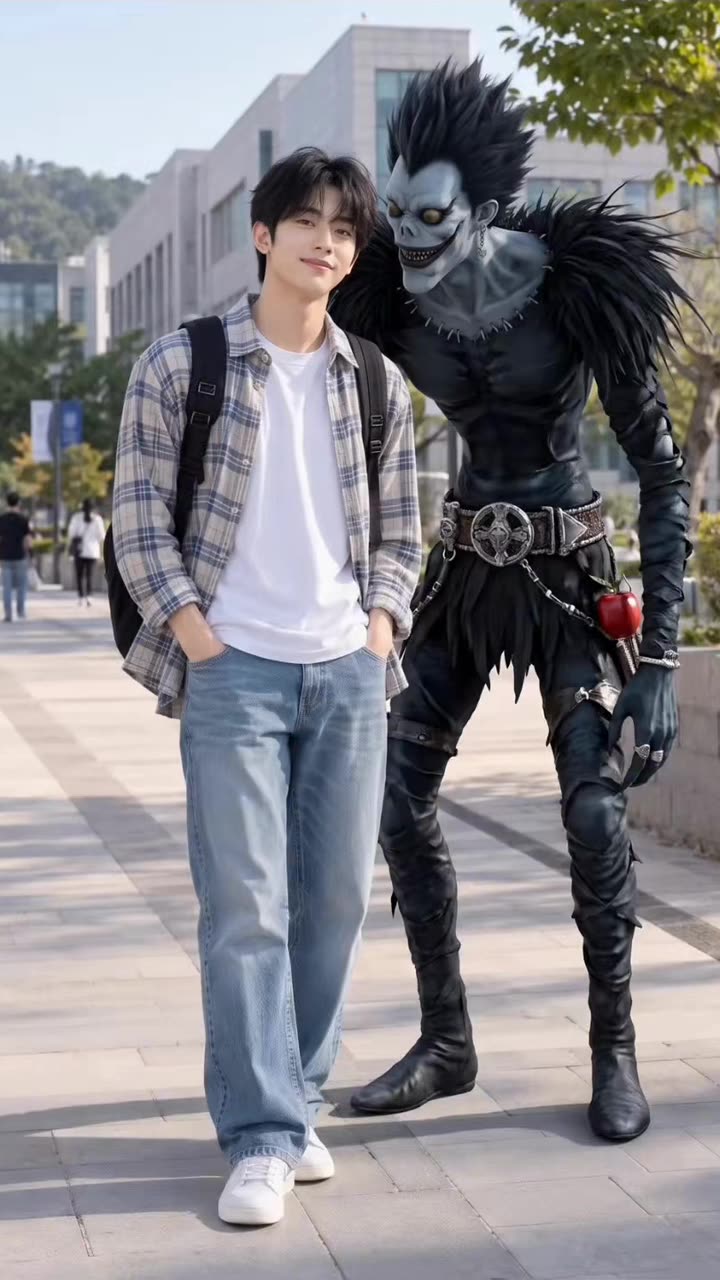
RemixMeme lets you build a Ryuk AI: Put the Grinning Death God in Your Photo without editing software. The Ryuk AI trend puts Ryuk, the grinning shinigami from Death Note, into your own photo, next to you or just behind your shoulder like a close friend.
On RemixMeme the flow stays the same across templates: open the effect, upload, create, then download. Ryuk AI: Put the Grinning Death God in Your Photo defaults to about 15 seconds in 9:16 vertical, which is enough for a Reels or TikTok cut without a long edit session.
What you need
- One clear front-facing adult photo you own or have permission to use
- About a minute in the browser — default output is ~15s 9:16 vertical
- A RemixMeme account (signup includes 20 credits, enough for about 2 default images; video uses more credits — plans start around $9.99)
Do not upload children’s photos or faces you do not have rights to use.
Steps
- Open remixmeme.com.
- Go to the template page: /templates/ryuk-ai-trend.
- Upload your photo in the create flow.
- Confirm aspect (9:16) if offered, then press Create.
- When the job finishes, download the MP4 and post it wherever you like.
Tips
- Prefer a neutral or lightly expressive face that matches the trend energy
- Avoid heavy sunglasses, hats that hide the face, or busy group photos
- One person per frame usually maps more cleanly to the template
- Signup credits cover a couple of image gens; plan for a paid pack if you want several video renders
Related
- Make this template: /templates/ryuk-ai-trend
- More guides: /blog
- Plans & credits: /pricing
- Browse all effects: /explore
That is it — a Ryuk AI: Put the Grinning Death God in Your Photo clip from your own photo, made on RemixMeme in a few clicks.